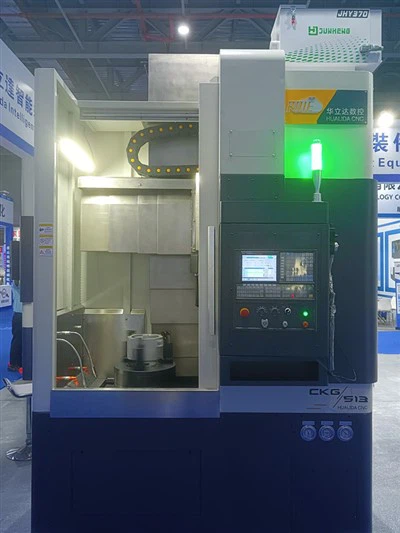
Hey there! As a supplier of the CKG513 CNC Lathe Machine, I often get asked about how to change the feed rate on this awesome piece of equipment. So, I thought I'd put together this blog post to walk you through the process step by step.
First off, let's talk a bit about what the feed rate is and why it's important. The feed rate on a CNC lathe machine determines how fast the cutting tool moves along the workpiece. It's a crucial factor in achieving the right finish on your parts, as well as controlling the amount of material being removed. If the feed rate is too high, you might end up with a rough surface finish or even damage the cutting tool. On the other hand, if it's too low, the machining process can take forever, and you won't be as productive.
Now, let's get into the nitty - gritty of changing the feed rate on the CKG513 CNC Lathe Machine.
Step 1: Familiarize Yourself with the Control Panel
The control panel of the CKG513 is where you'll be making most of your adjustments. It's got a bunch of buttons, a display screen, and a keypad. Take some time to get to know what each button does. You'll usually find the feed rate control options on the main menu or a dedicated machining settings menu.
Step 2: Select the Program or Manual Mode
The CKG513 can operate in either program mode or manual mode. In program mode, the feed rate is usually set within the CNC program you've loaded. If you're working in manual mode, you have more direct control over the feed rate.
- Program Mode: If you're using a pre - written program, you'll need to access the program editor on the control panel. Look for the section where the feed rate is specified. It's often denoted by the letter "F" followed by a number. For example, F0.2 might mean a feed rate of 0.2 millimeters per revolution. You can change this value by using the keypad on the control panel. Once you've made the change, save the program and reload it if necessary.
- Manual Mode: In manual mode, you can adjust the feed rate on the fly. There are usually dedicated buttons for increasing or decreasing the feed rate. Press the "Increase Feed Rate" or "Decrease Feed Rate" buttons to make the adjustments. The display screen will show you the current feed rate value.
Step 3: Consider the Material and Tooling
The feed rate you choose should depend on the material you're working with and the type of cutting tool you're using. Different materials have different hardness levels, and cutting tools have different geometries and capabilities.
- Material: Softer materials like aluminum can usually handle a higher feed rate compared to harder materials like stainless steel. For example, when machining aluminum, you might be able to use a feed rate of around 0.3 - 0.5 mm/rev, while for stainless steel, you might need to drop it down to 0.1 - 0.2 mm/rev.
- Tooling: The type of cutting tool also plays a big role. Carbide tools can generally handle higher feed rates than high - speed steel tools. Check the manufacturer's recommendations for the specific cutting tool you're using to get an idea of the optimal feed rate.
Step 4: Test and Adjust
Once you've made an initial adjustment to the feed rate, it's a good idea to do a test run. Start with a small piece of scrap material that's the same as the workpiece you'll be machining. Observe how the cutting tool performs and the quality of the surface finish.
- If the surface finish is rough, it could mean the feed rate is too high. Try decreasing the feed rate and running the test again.
- If the machining process is taking too long, and the tool isn't cutting efficiently, you might need to increase the feed rate.
Keep making these small adjustments until you get the desired results.
Step 5: Document Your Settings
It's always a good idea to keep a record of the feed rate settings that work well for different materials and tooling combinations. This will save you time in the future, as you won't have to go through the trial - and - error process all over again. You can use a simple spreadsheet or a notebook to keep track of these settings.
Now, if you're in the market for a high - quality CNC lathe machine, our CKG513 CNC Lathe Machine is a great choice. It's reliable, easy to operate, and offers a wide range of features to help you get the best results in your machining operations.
We also offer other great options like the CNC Vertical Turning Lathe and the CKG5110 CNC Vertical Turning Lathe. These machines are designed to meet the needs of various machining applications, whether you're a small - scale workshop or a large - scale manufacturing facility.


If you're interested in learning more about our products or have any questions about changing the feed rate on the CKG513 or any of our other machines, don't hesitate to reach out. We're here to help you make the most of your machining operations and get the best value for your investment.
References
- CNC Lathe Operator's Manual - CKG513 Series
- Cutting Tool Manufacturer's Guidelines
- Machining Handbook for Material and Tooling Recommendations