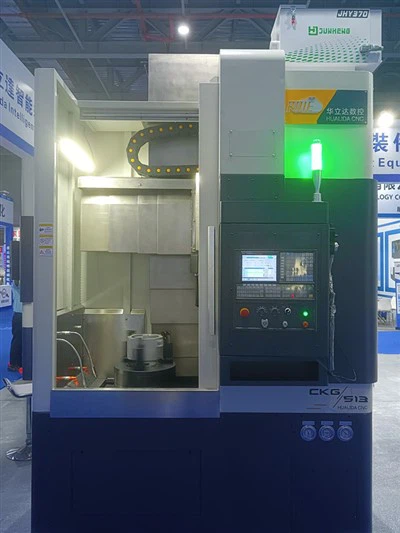
Upgrading the software of a CKG513 CNC Lathe Machine can significantly enhance its performance, efficiency, and functionality. As a supplier of the CKG513 CNC Lathe Machine, I understand the importance of providing our customers with the knowledge and guidance to perform software upgrades effectively. In this blog post, I will share a step-by-step guide on how to upgrade the software of the CKG513 CNC Lathe Machine, along with some important considerations and best practices.
Step 1: Determine the Compatibility
Before starting the software upgrade process, it is crucial to ensure that the new software version is compatible with your CKG513 CNC Lathe Machine. Check the manufacturer's website or contact our technical support team to obtain the latest software version and verify its compatibility with your machine's hardware configuration. Using incompatible software can lead to system instability, errors, and even damage to the machine.
Step 2: Backup Your Existing Data
Once you have confirmed the compatibility of the new software, it is essential to backup all your existing data, including programs, parameters, and tool offsets. This will prevent any data loss in case something goes wrong during the upgrade process. You can use a USB flash drive or an external hard drive to backup the data. Simply connect the storage device to the machine's USB port and follow the on-screen instructions to save the data.
Step 3: Download the New Software
Visit the manufacturer's website and navigate to the download section. Locate the software package for the CKG513 CNC Lathe Machine and download it to your computer. Make sure to download the correct version for your machine's operating system. Once the download is complete, transfer the software package to a USB flash drive.
Step 4: Prepare the Machine for the Upgrade
Before installing the new software, it is recommended to perform a thorough cleaning of the machine to remove any dust, debris, or contaminants. This will help ensure a smooth installation process and prevent any potential issues. Additionally, make sure the machine is powered off and unplugged from the electrical supply to avoid any electrical hazards.
Step 5: Install the New Software
Insert the USB flash drive containing the software package into the machine's USB port. Power on the machine and follow the on-screen instructions to start the installation process. The machine will automatically detect the software package and prompt you to proceed with the installation. Follow the prompts carefully and select the appropriate options to complete the installation. The installation process may take several minutes, depending on the size of the software package and the speed of your machine.
Step 6: Restore Your Data
After the software installation is complete, you can restore your backed-up data to the machine. Insert the USB flash drive containing the backup data into the machine's USB port and follow the on-screen instructions to restore the data. This will ensure that all your programs, parameters, and tool offsets are available on the machine after the upgrade.
Step 7: Test the Machine
Once the data restoration is complete, it is important to test the machine to ensure that the software upgrade was successful. Power on the machine and run a few test programs to verify that the machine is functioning properly. Check for any error messages or abnormal behavior during the testing process. If you encounter any issues, contact our technical support team for assistance.
Important Considerations and Best Practices
- Read the Manual: Before attempting to upgrade the software, carefully read the machine's user manual and the software installation guide. This will provide you with detailed instructions and important information about the upgrade process.
- Follow the Instructions: Follow the on-screen instructions and prompts carefully during the installation process. Do not skip any steps or make any changes to the default settings unless you are sure of what you are doing.
- Keep the Machine Updated: Regularly check the manufacturer's website for software updates and install them as soon as they become available. This will ensure that your machine has the latest features, bug fixes, and security patches.
- Seek Professional Help: If you are unsure about any aspect of the software upgrade process or if you encounter any issues, do not hesitate to contact our technical support team. Our experienced technicians will be happy to assist you and provide you with the necessary guidance and support.
Conclusion
Upgrading the software of your CKG513 CNC Lathe Machine is a relatively straightforward process that can bring significant benefits to your machining operations. By following the steps outlined in this blog post and adhering to the important considerations and best practices, you can ensure a successful software upgrade and enjoy the improved performance and functionality of your machine.
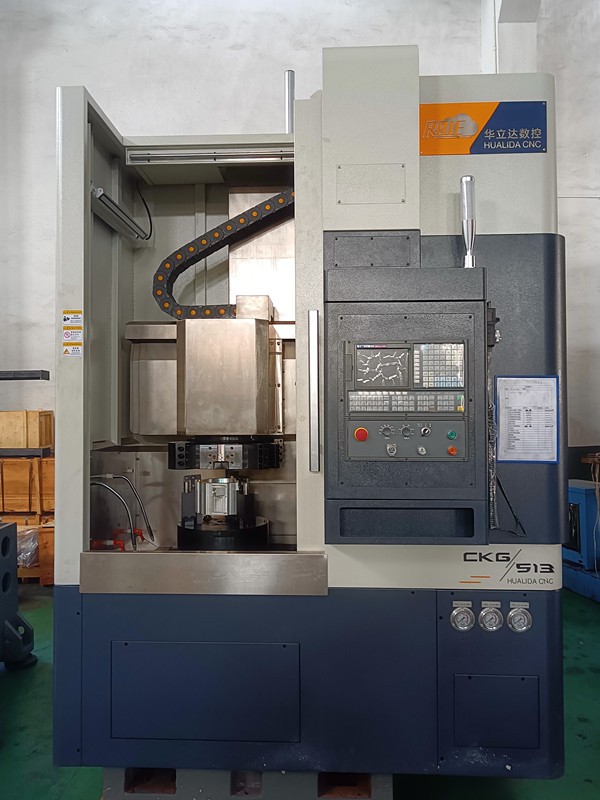

If you are interested in purchasing a CKG513 CNC Lathe Machine or any other CNC machines, such as the CKG5110 CNC Vertical Lathe, High Speed Vertical Lathe, or CKG515 CNC Vertical Lathe, please feel free to contact us. Our sales team will be happy to provide you with more information and assist you with your purchase.
References
- Manufacturer's user manual for the CKG513 CNC Lathe Machine
- Software installation guide provided by the manufacturer